Dialogs
You can display a dialog in the MetaMask UI using the
snap_dialog API method.
Dialogs can contain custom UI and interactive UI components.
The four types of dialogs include alerts, confirmations, prompts, and custom dialogs.
- Dialogs do not work when MetaMask is locked.
To check if MetaMask is locked, use
snap_getClientStatus. metamask:URLs are not supported in dialogs.
Request permission to display dialogs
To display dialogs, first request the snap_dialog permission.
Add the following to your Snap's manifest file:
"initialPermissions": {
  "snap_dialog": {}
}
Display an alert dialog
To display an alert that can only be acknowledged, call
snap_dialog with type: "alert".
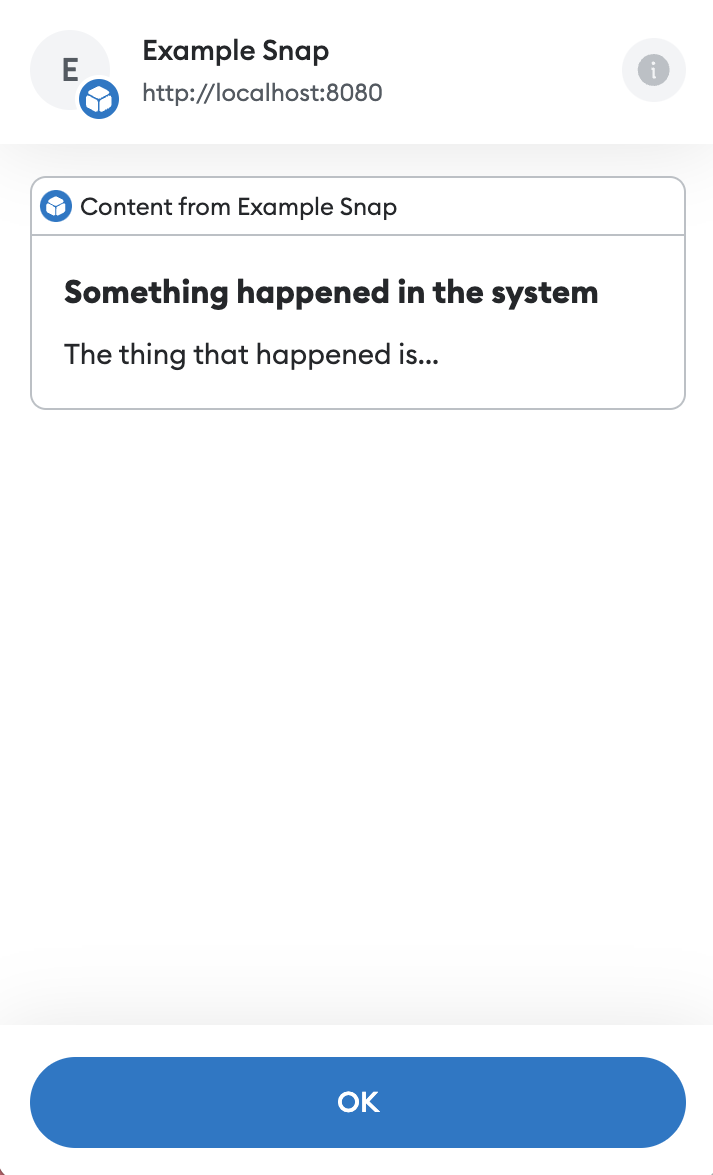
The following example displays custom UI that alerts the user when something happens in the system:
import { Box, Text, Heading } from '@metamask/snaps-sdk/jsx'

await snap.request({
  method: 'snap_dialog',
  params: {
    type: 'alert',
    content: (
      <Box>
        <Heading>Something happened in the system</Heading>
        <Text>The thing that happened is...</Text>
      </Box>
    ),
  },
})

// Code that should execute after the alert has been acknowledged.
Display a confirmation dialog
To display a confirmation that can be accepted or rejected, call
snap_dialog with type: "confirmation".
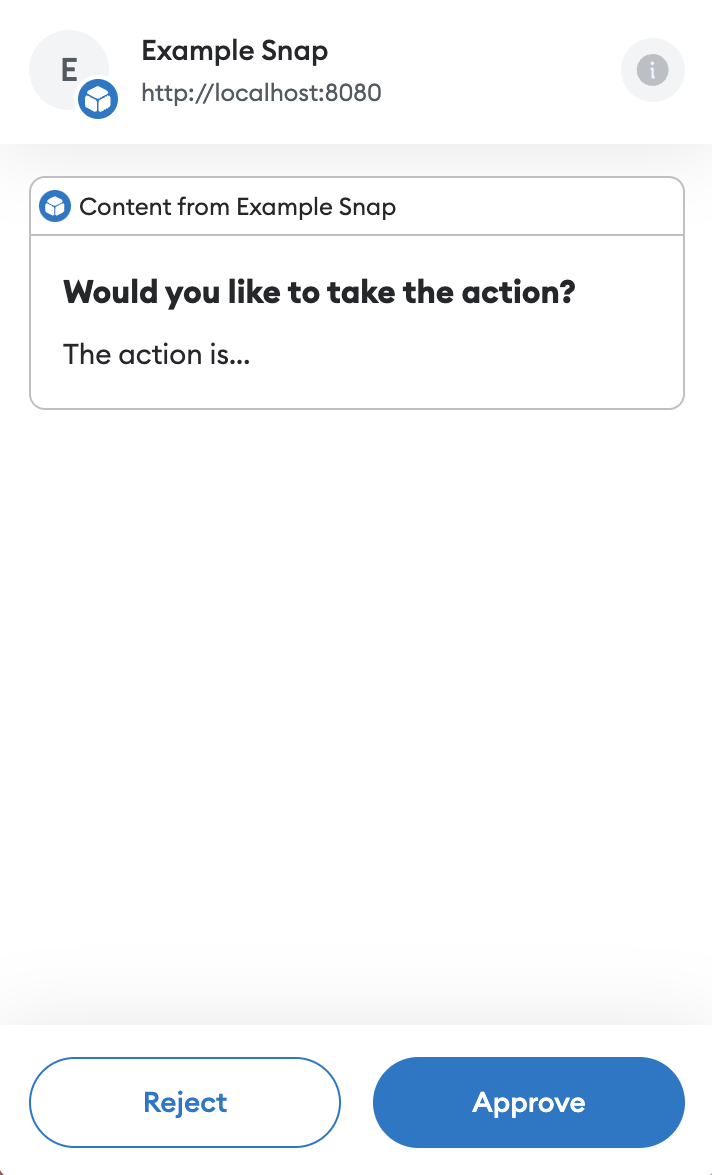
The following example displays custom UI that asks the user to confirm whether they would like to
take an action:
import { Box, Text, Heading } from '@metamask/snaps-sdk/jsx'

const result = await snap.request({
  method: 'snap_dialog',
  params: {
    type: 'confirmation',
    content: (
      <Box>
        <Heading>Would you like to take the action?</Heading>
        <Text>The action is...</Text>
      </Box>
    ),
  },
})

if (result === true) {
  // Do the action.
}
Display a prompt dialog
To display a prompt where the user can enter a text response, call
snap_dialog with type: "prompt".
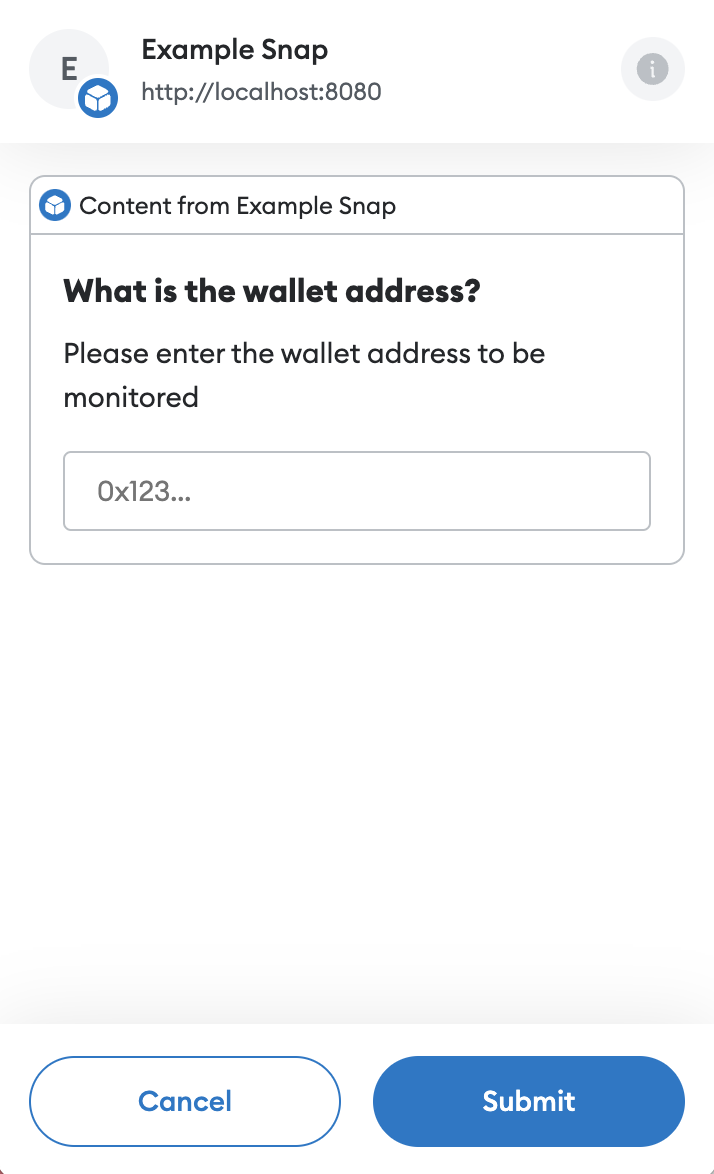
Prompt dialogs also accept a placeholder value that displays in the input field when no text is entered.
The following example displays custom UI that prompts the user to enter a wallet address:
import { Box, Text, Heading } from '@metamask/snaps-sdk/jsx'

const walletAddress = await snap.request({
  method: 'snap_dialog',
  params: {
    type: 'prompt',
    content: (
      <Box>
        <Heading>What is the wallet address?</Heading>
        <Text>Please enter the wallet address to be monitored</Text>
      </Box>
    ),
    placeholder: '0x123...',
  },
})

// walletAddress will be a string containing the address entered by the user.
Display a custom dialog
To display a custom dialog, call snap_dialog
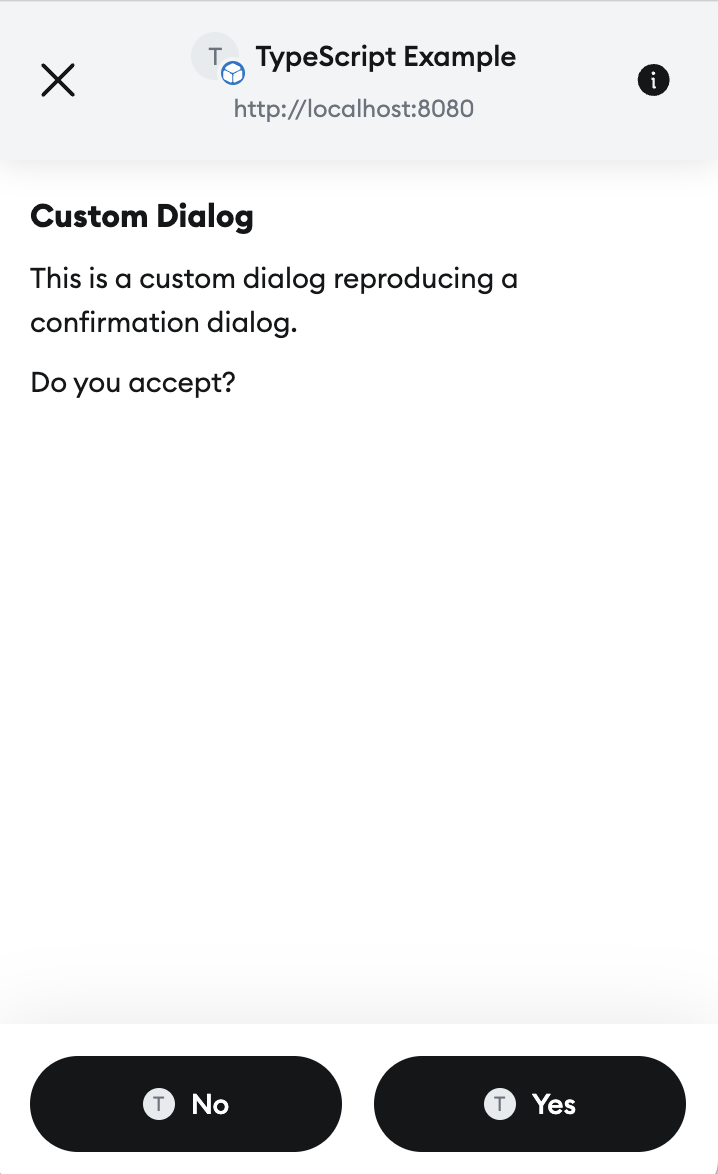
without providing a type. Custom dialogs can be resolved by calling snap_resolveInterface. The UI passed to a custom dialog should contain a Footer element. Its buttons will be displayed at the bottom of the dialog. Here is a complete example:
import {
  UserInputEventType,
  type OnRpcRequestHandler,
  type OnUserInputHandler,
} from '@metamask/snaps-sdk'
import { Box, Text, Heading, Container, Footer, Button } from '@metamask/snaps-sdk/jsx'

/**
 * Handle incoming JSON-RPC requests, sent through wallet_invokeSnap.
 *
 * @param args - The request handler args as object.
 * @param args.origin - The origin of the request, e.g., the website that
 * invoked the snap.
 * @param args.request - A validated JSON-RPC request object.
 * @returns The result of snap_dialog.
 * @throws If the request method is not valid for this snap.
 */
export const onRpcRequest: OnRpcRequestHandler = async () => {
  const result = await snap.request({
    method: 'snap_dialog',
    params: {
      content: (
        <Container>
          <Box>
            <Heading>Custom Dialog</Heading>
            <Text>
              This is a custom dialog reproducing a confirmation dialog.
              <br />
              Do you accept?
            </Text>
          </Box>
          <Footer>
            <Button name="no">No</Button>
            <Button name="yes">Yes</Button>
          </Footer>
        </Container>
      ),
    },
  })

  console.log('result', result) // Result will be true or false.

  return result
}

export const onUserInput: OnUserInputHandler = async ({ id, event }) => {
  if (event.type === UserInputEventType.ButtonClickEvent) {
    switch (event.name) {
      case 'no': // User selected "No" in the footer.
        await snap.request({
          method: 'snap_resolveInterface',
          params: {
            id,
            value: false,
          },
        })
        break

      case 'yes': {
        // User selected "Yes" in the footer
        await snap.request({
          method: 'snap_resolveInterface',
          params: {
            id,
            value: true,
          },
        })
        break
      }

      default:
        break
    }
  }
}
This code outputs a custom dialog with two buttons: Yes and No.
When the user selects one of the buttons, onUserInput is called with the button's name. From there, snap_resolveInterface is called. This resolves the dialog, and returns the value passed to snap_resolveInterface as the result of the dialog.
Example
See the @metamask/dialog-example-snap
package for a full example of implementing dialogs.
This example exposes a custom JSON-RPC API
for dapps to display dialogs.